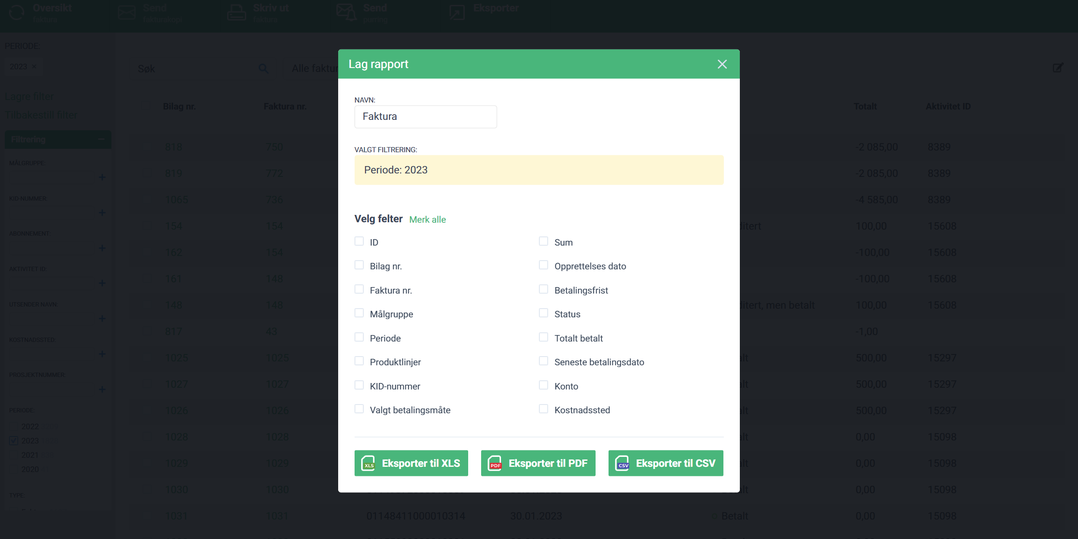
In BackOffice, administrators can now export person/company ID on all invoices in the create report feature from the invoice overview.
The ID is taken from the person or company the invoice is created for.
This makes it possible to match the reports with the person reports and to make more advanced statistics.
Currently, when someone registers for a course, they can choose to either use the payment information registered on their own contact card or their company’s card.
We are removing this connection. Payment information will still be prefilled based on whether you choose person pays or company pays, but it will be possible to edit that payment information will when registering for a course. The goal is to make registering for a course more flexible and user-friendly.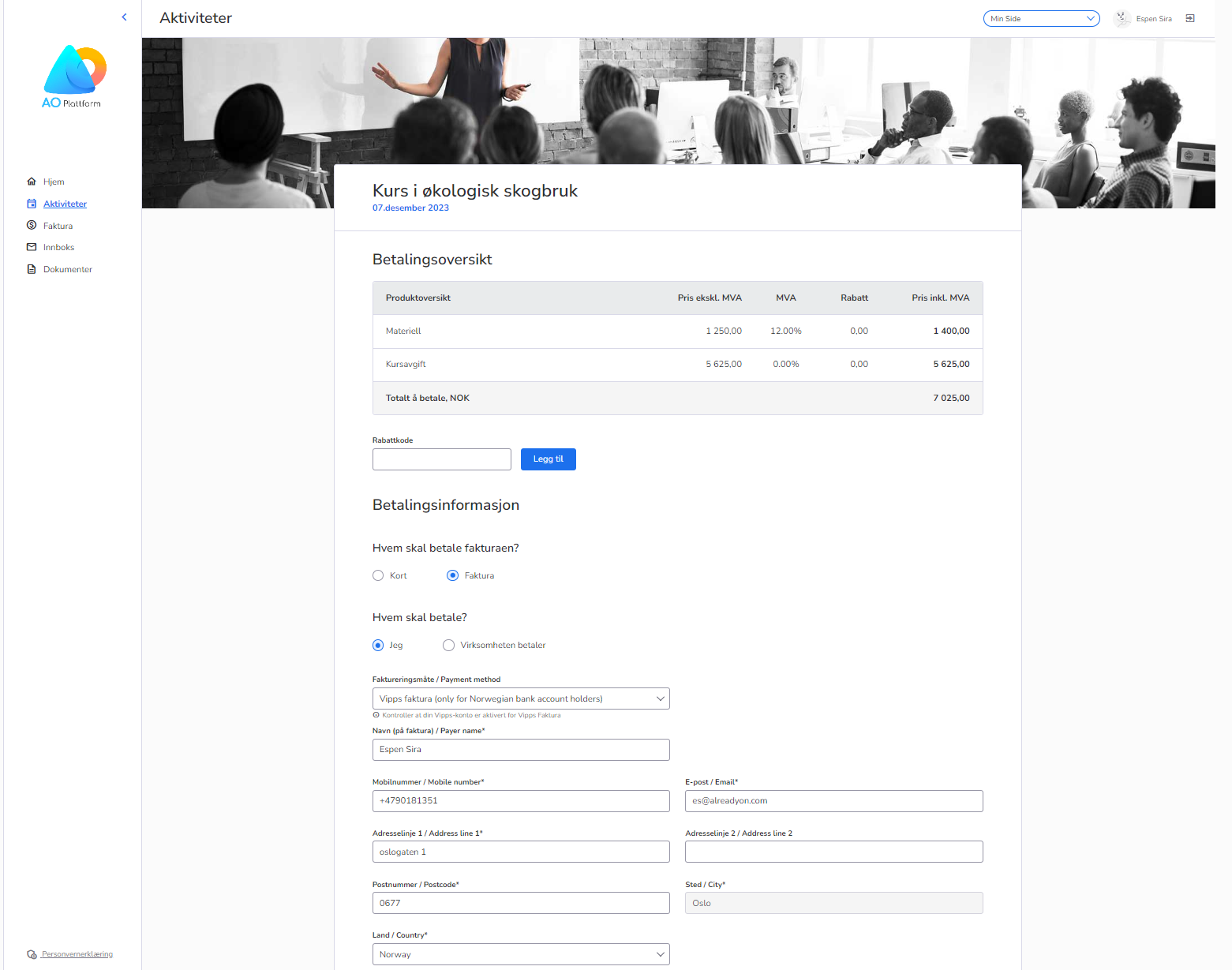
When a participant registers for a course or when an administrator adds a participant, the current payment method is set to “person pays” by default. We are now adding an option to change the default payment method to “company pays”. This default behavior can currently only be changed with our assistance in the organization settings.
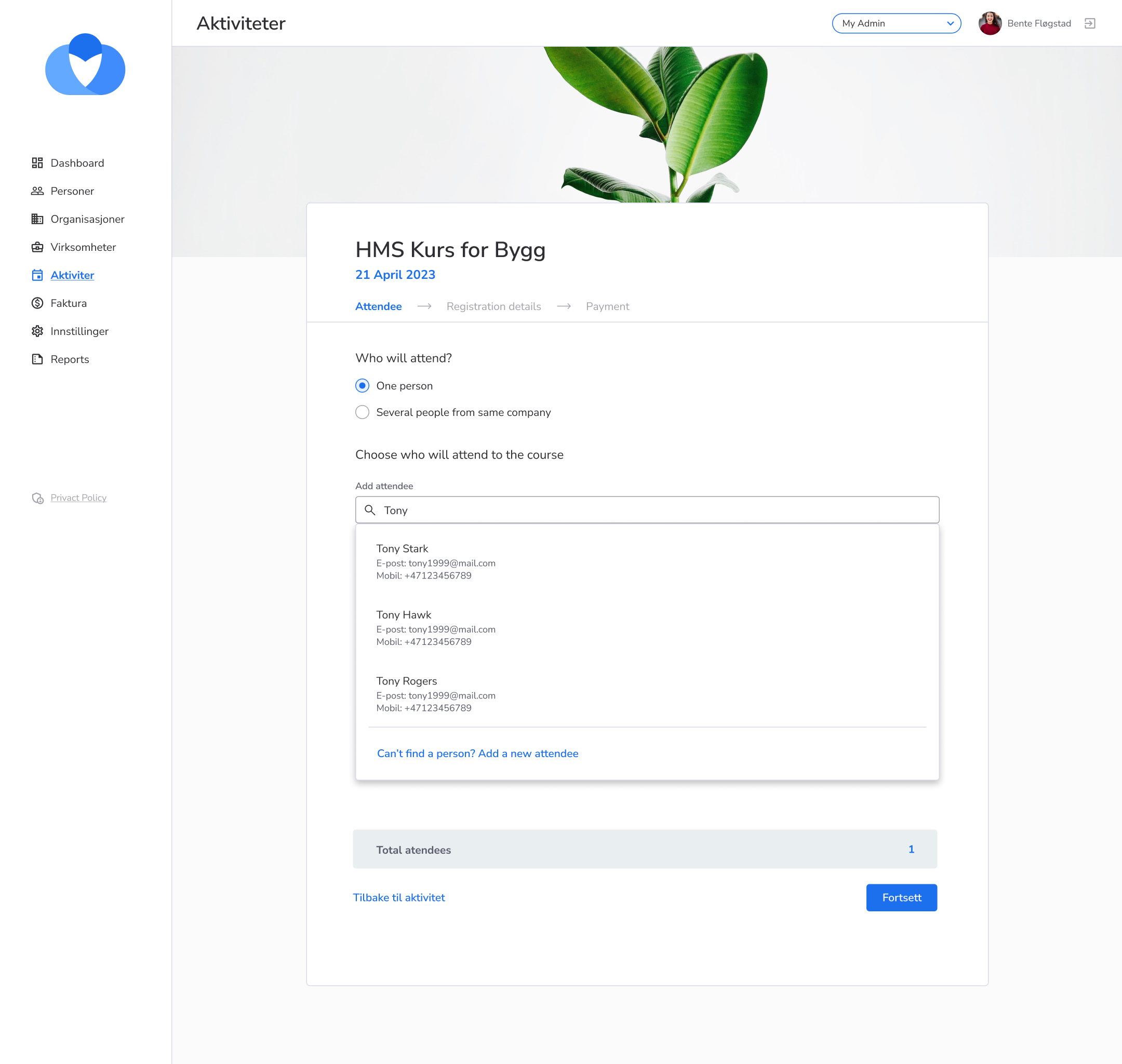
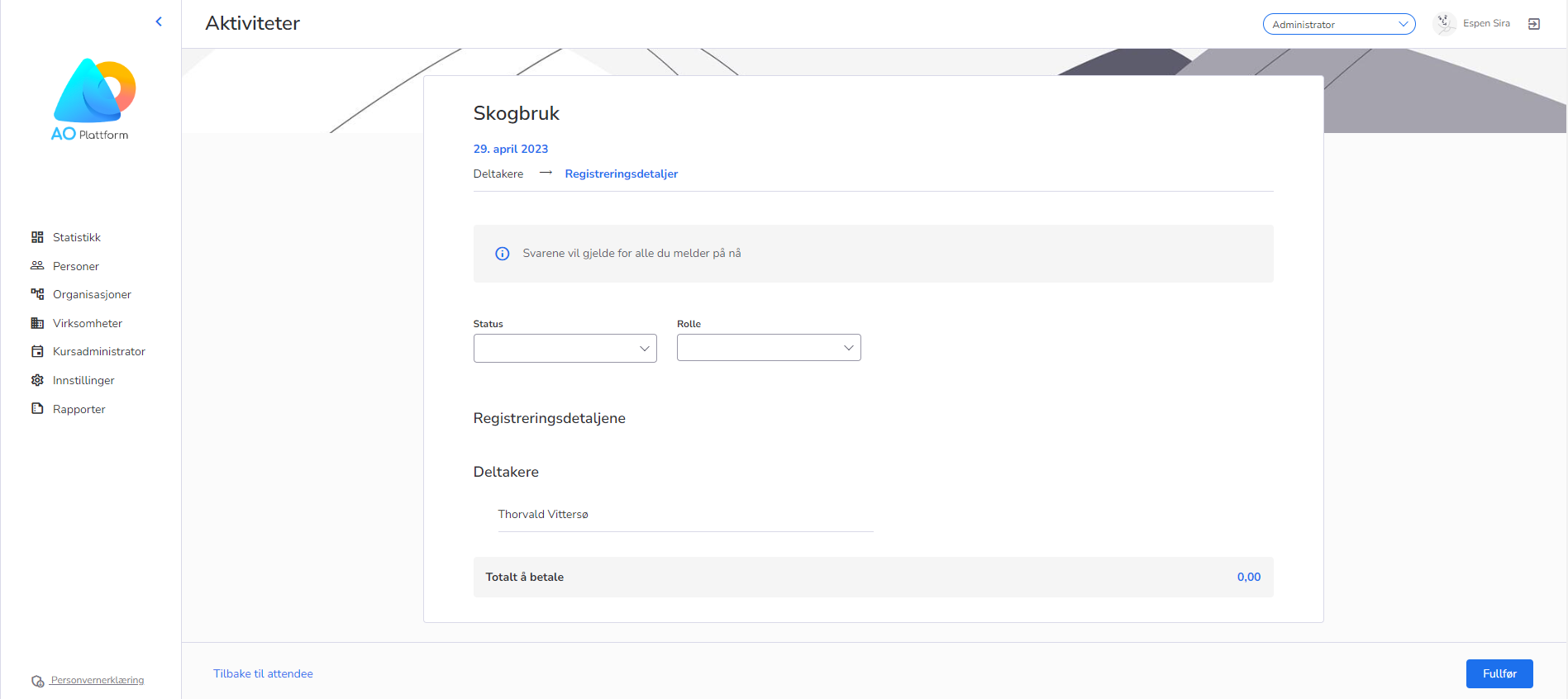
We have redesigned the flow for administrators to register participants to courses. The flow consists of 3 steps:
Step 0: Add participants
The first step has two options:
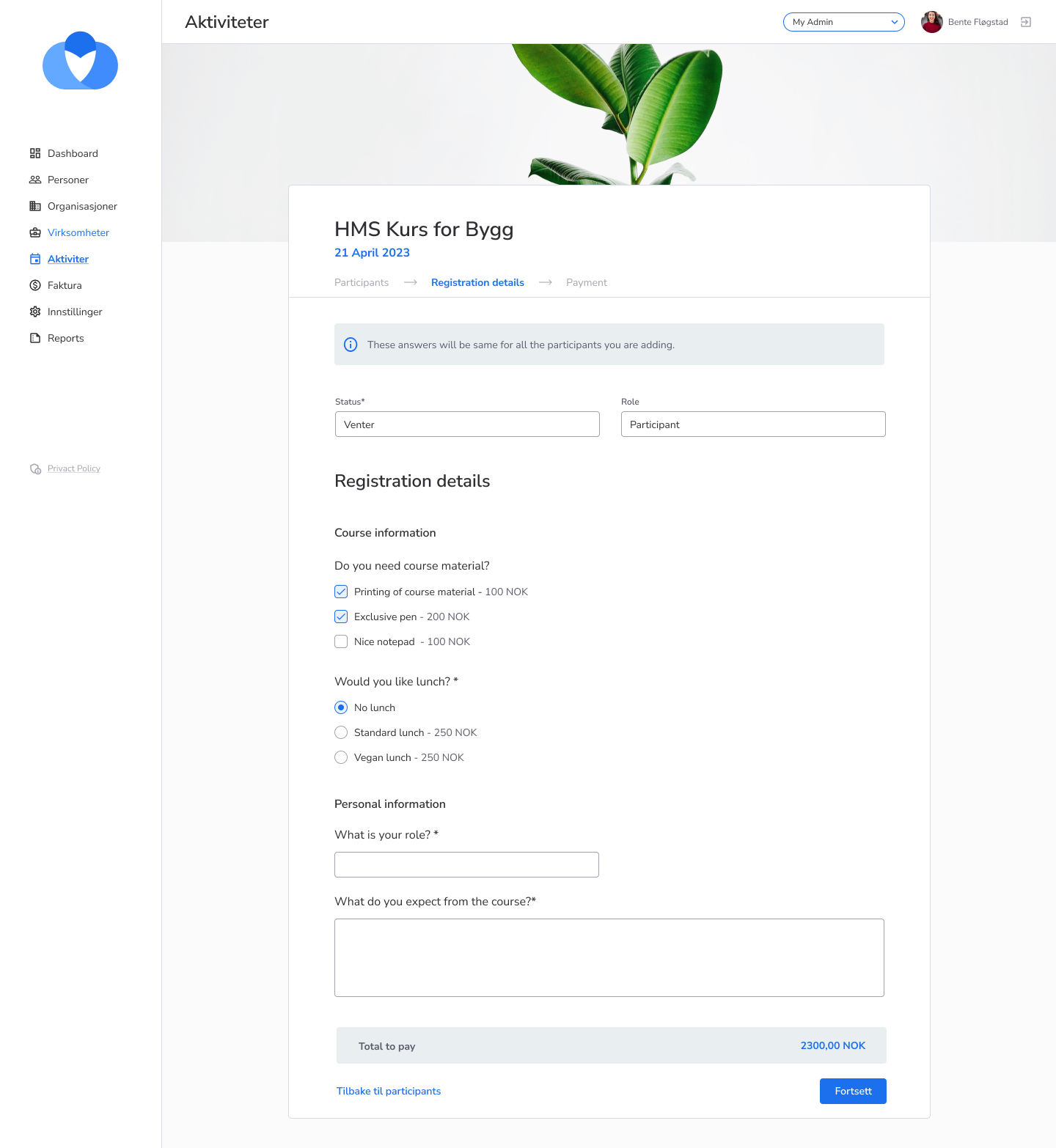
Step 1: Registration form
Registration form of the course.
If you add several people at once, a message will show, explaining that “everyone you add to the course will get the same registration information”. Meaning, the options you select in this form will apply for all people selected in step 1. If you have people with different registration details, these need to be handled separately. For instance, first you handle everybody who will have lunch. Then you repeat the process and handle everyone with lunch+hotel.
If it is a free course this is the last step and the button says “Fullfør”.
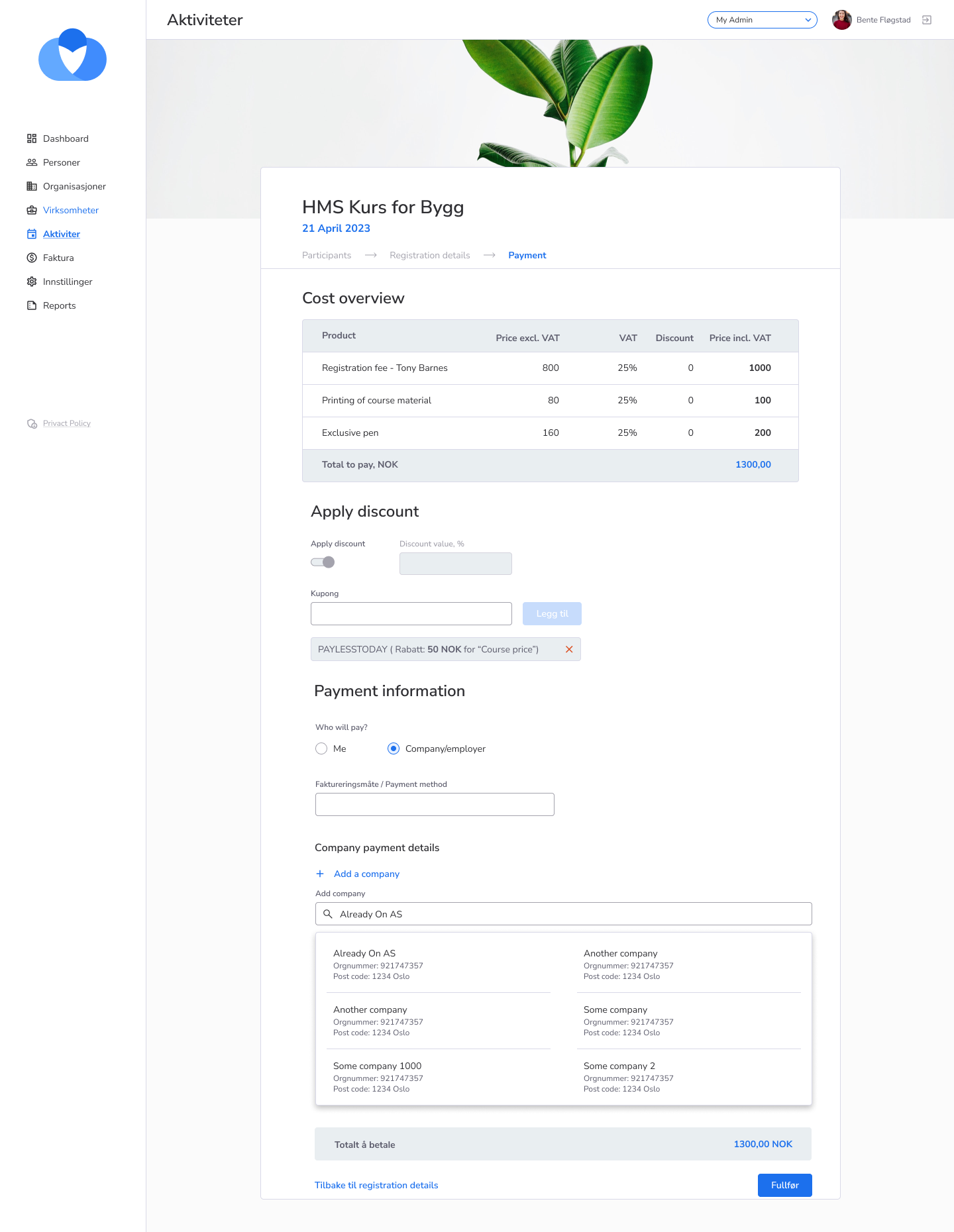
Step 3 (only paid courses): Payment & Discount
The last step provides a payment summary, possibility to add discount percentage or coupon and enter payment details.
Enter coupon code to add discount.
If registering only one participant, select who should pay - the person or a company. If you are registering multiple people, there is only one payment option: company pays.
To select a company, simply use the search field and select the company you want from there.
Payment information is required - payer and payer information need to be filled to be able to confirm the registration.
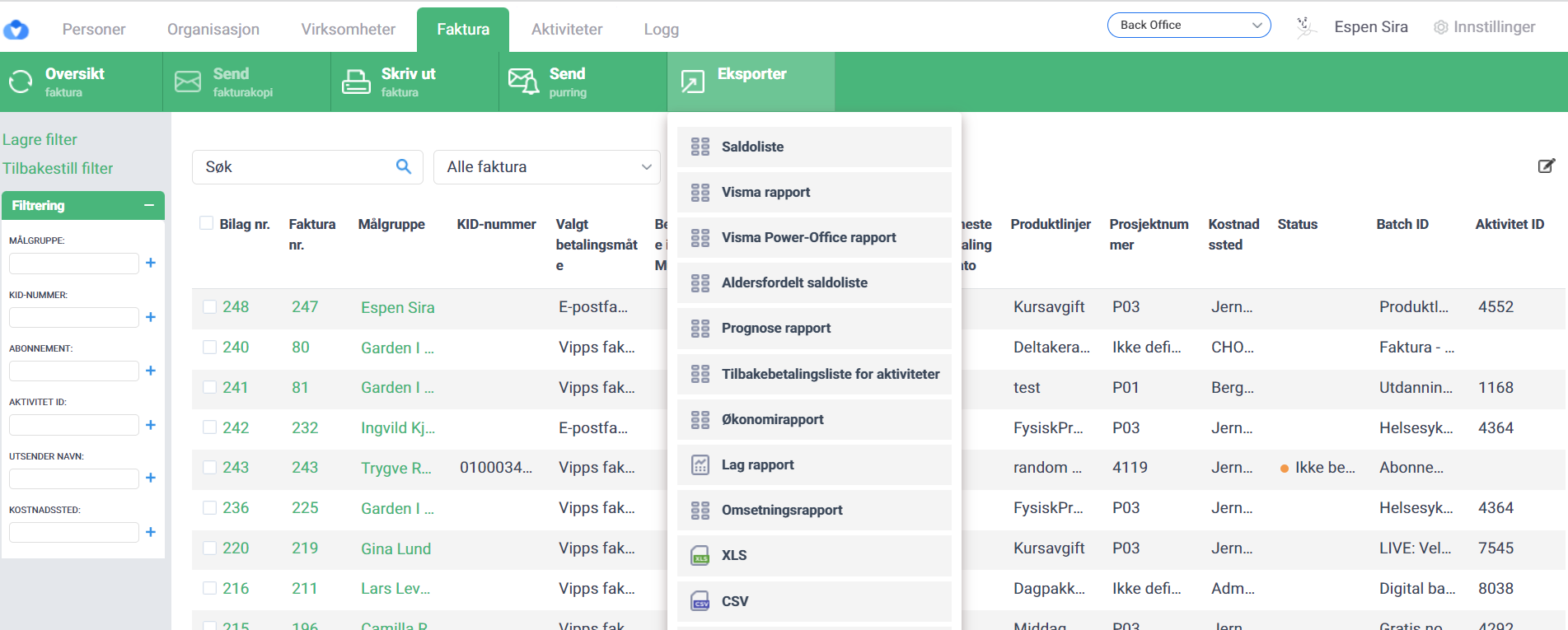
We added a new feature for super administrators that enables them to generate a revenue report for a specific time period. To access this feature, simply go to the BackOffice and click on the invoice tab. From there, click on the “export” dropdown menu and select revenue report (omsetningsrapport).
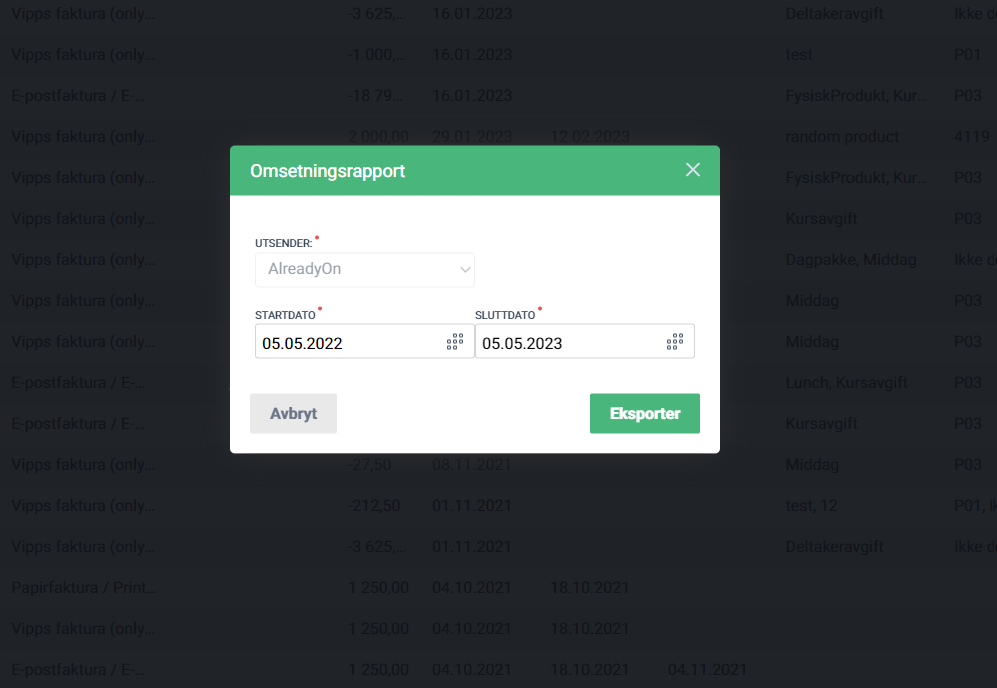
A modal window will appear, prompting you to input the start and end dates of the time period you wish to analyze. The revenue report generated will display each customer as a separate row, with the total value of revenue received during the specified time period. The report is sorted by the total revenue value, with the highest revenue generating customers appearing at the top of the report.
It is important to note that only “paid, overpaid, partly paid” invoices will be counted in the report.
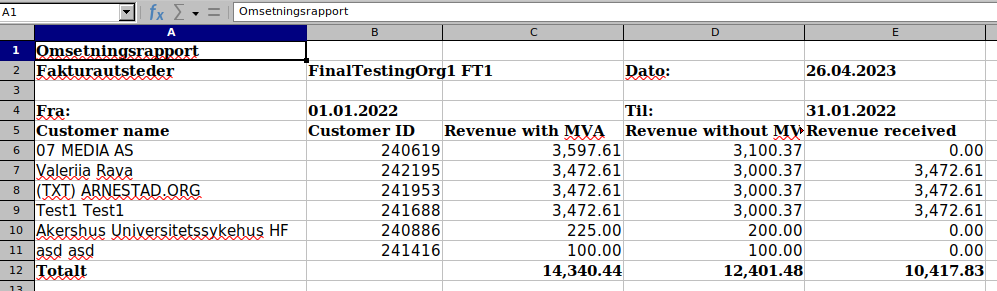
The generated revenue report can be exported in an Excel format, which can be easily shared and analyzed. This feature is aimed at providing super administrators with a overview of revenue generated during a specific time period, allowing for more informed business decision-making.